Account takeover scams have become faster and more convincing. Scammers now use AI-written phishing emails and voice clones to impersonate banks, employers, and family members. If a scammer gets your password, they can drain accounts, lock you out, and target your contacts. Two-factor authentication is one of the strongest layers you can add. The Federal Trade Commission recommends it as a core defense at https://www.ftc.gov/.
Two-factor authentication, or 2FA, requires a second proof of identity beyond your password. That proof is usually a code from an app, a hardware key, or a text message. Attackers often trick people into sharing one-time codes, so the way you set up and use 2FA matters. AI phishing emails can look exactly like real bank messages, as explained in how to identify AI phishing emails. A well-configured 2FA setup blocks many of those attacks even after you click a bad link.
Voice cloning and deepfake scams add pressure. A scammer may call you pretending to be your bank’s fraud team and ask for a code. Or they may create a fake video of your boss asking you to change a wire destination. Those attacks fail if your accounts require a code from a device only you hold. Read more about spotting AI voice cloning scams. 2FA makes a stolen password or a convincing voice much less dangerous.
This guide walks through the exact steps to lock down your most important accounts. You will learn which accounts to secure first, which 2FA methods are strongest, and how to recover access if you lose your phone. The goal is simple: make your accounts too hard for scammers to enter, even when they know your password. The Cybersecurity and Infrastructure Security Agency, or CISA, calls multi-factor authentication one of the most effective controls against account compromise.
What You’ll Need
- A smartphone or tablet for an authenticator app
- A computer with internet access
- Paper and pen for backup codes
- Optional: two hardware security keys
How Do You Set Up and Secure Two-Factor Authentication to Block Scams?
- Start with your primary email account because it resets everything else.
Why email first? Your email is the master key. Most services send password reset links to your email account. If a scammer gets into your email, they can reset passwords for your bank, social media, and cloud storage. That means one compromised email can become a full identity takeover. Start by signing into your primary email account and opening the security settings. For Gmail, go to Google Account > Security > 2-Step Verification. For Outlook, go to Microsoft Account > Security > Advanced security options. For Apple ID, go to Settings > your name > Sign-In & Security > Two-Factor Authentication.
Turn on 2FA using an authenticator app if possible. The app generates codes that change every 30 seconds. You will also see an option for backup codes. Save those in a safe place, not inside the same email account. If you must start with SMS, enable it now and switch to an authenticator app later. SMS is better than no 2FA, but it can be intercepted through SIM swapping. CISA warns that SMS-based MFA is vulnerable to phone number porting attacks. See CISA guidance.
After you enable 2FA, test it. Sign out of your email and sign back in on a new browser or private window. The service should ask for a code or approval after you enter your password. If it does not, the setup was not saved correctly. Do this test before you rely on 2FA to protect your recovery email.
Common mistake: people only turn on 2FA for one login method, like a phone prompt, and forget about backup email or recovery phone. Check every recovery option listed in your email security settings. Remove any old phone numbers or email addresses you no longer control. A scammer who finds an old recovery phone can use it to bypass your new 2FA.
- Choose an authenticator app instead of SMS where possible.
Authenticator apps are free and do not rely on your phone number. Popular options include Google Authenticator, Microsoft Authenticator, Authy, and 1Password. They generate a six-digit code that changes every 30 seconds. You enter this code after your password. Because the code lives on your device and not in a text message, a SIM swapping attack cannot steal it.
Install the app on your phone or tablet. Then go to the security settings of the account you want to protect. Choose ‘Authenticator app’ or ‘TOTP’ when adding two-factor authentication. The website will show a QR code. Use the authenticator app to scan it. After scanning, the app shows a six-digit code. Enter that code to confirm the setup. For most sites, this takes less than two minutes.
Microsoft has reported that multi-factor authentication blocks over 99.9 percent of account compromise attacks. That is a concrete reason to switch. The benefit is not perfect security. It is a very large reduction in risk. If someone calls and asks for a code, use these techniques to verify whether the caller is an AI or a human. No legitimate bank or tech support agent will demand a one-time code.
A common mistake is keeping the authenticator app only on a phone that is not backed up. If you lose the phone, you lose the codes. Many authenticator apps allow cloud backup. Authy backs up encrypted tokens. Microsoft Authenticator can back up to your Microsoft account. If you prefer offline only, write down the QR code or setup key on paper and store it securely.
- Secure your financial accounts, crypto accounts, and identity accounts with 2FA and alerts.
Banks, brokerages, and crypto exchanges are prime targets. Scammers use AI-generated emails and fake customer support calls to trick you into sharing codes or approving logins. Add 2FA to every financial account that offers it. Most major banks let you use an authenticator app under Security or Login Settings. If your bank only offers SMS or email codes, enable those for now and call or message support to request stronger options.
For investment and crypto accounts, consider using a hardware security key if the platform supports it. Coinbase, for example, supports security keys. Scammers often run AI investment scams and crypto fraud that start with a stolen login. A hardware key stops remote attackers even if they have your password and your one-time code. If you cannot use a key, an authenticator app is the next best choice.
Also turn on transaction alerts. Most banks and brokerages can text or email you for every login, transfer, or password change. These alerts give you early warning if someone tries to use your account. If you get an alert you did not trigger, change your password and check your active sessions immediately. Consider using a credit freeze to protect against AI identity theft for broader protection.
Do not approve login requests just because your phone buzzes. Always check the location and time shown in the prompt. If it says the login is from another city or country, tap ‘No’ or ‘Deny.’ Then go to your account security settings and review recent activity.
- Enable 2FA on social media, cloud storage, and messaging apps.
Social media accounts are valuable to scammers. They use them to impersonate you, run romance scams, or send fake investment messages to your friends. If a scammer takes over your Facebook, Instagram, or LinkedIn account, they can damage your reputation and steal money from people who trust you. Open the security or privacy settings for each platform and turn on two-factor authentication. Most support authenticator apps.
Cloud storage accounts, like Google Drive, iCloud, Dropbox, and OneDrive, also need 2FA. These accounts can contain tax documents, photos, backups, and scans of your passport. A scammer who accesses your cloud storage can steal enough data to open accounts in your name. After enabling 2FA, check which devices have access to your cloud account and remove any you do not recognize.
Messaging apps like WhatsApp, Signal, and Telegram have their own two-step verification or registration locks. These features stop someone from taking over your phone number on a new device. In WhatsApp, go to Settings > Account > Two-step verification. In Signal, set a registration lock PIN. In Telegram, enable two-step verification under Privacy and Security. These settings are separate from your phone’s lock screen.
Scammers are increasingly using AI deepfake videos to make fake messages look real. A stolen social media account can be used to share a deepfake video with your contacts. 2FA reduces that risk. If a platform only offers SMS, use it until better options arrive. Then recheck every few months because many platforms improve their security settings without announcing it.
- Generate and store backup codes offline.
Backup codes are your escape route if you lose access to your authenticator app or hardware key. Most services generate a set of one-time backup codes when you enable 2FA. Print them or write them down. Do not store them in your email, notes app, or cloud storage. If an attacker gets into your email, they can search for backup codes. Store printed codes in a locked drawer or a fireproof safe.
A good practice is to make two copies. Keep one copy at home and one copy with a trusted person in a sealed envelope. If you are helping an older parent, walk them through the process and keep a copy in their file. For more on protecting less tech-savvy relatives, read how to protect elderly parents from AI scams. Never send backup codes through text, email, or social media.
Test at least one backup code after you save them. Most sites show each backup code only once. If you do not test, you may later discover the code was copied wrong. Use one code immediately after setup, then generate a new set if the service allows. Mark the used code as spent.
Common mistake: people take a screenshot of backup codes and leave it in their photo gallery. Phone backups can sync photos to the cloud. If your cloud account is compromised, the codes are exposed. Paper is far safer for codes. If you must store them digitally, use a password manager with an encrypted vault and enable 2FA on the password manager itself.
- Use hardware security keys for high-risk accounts.
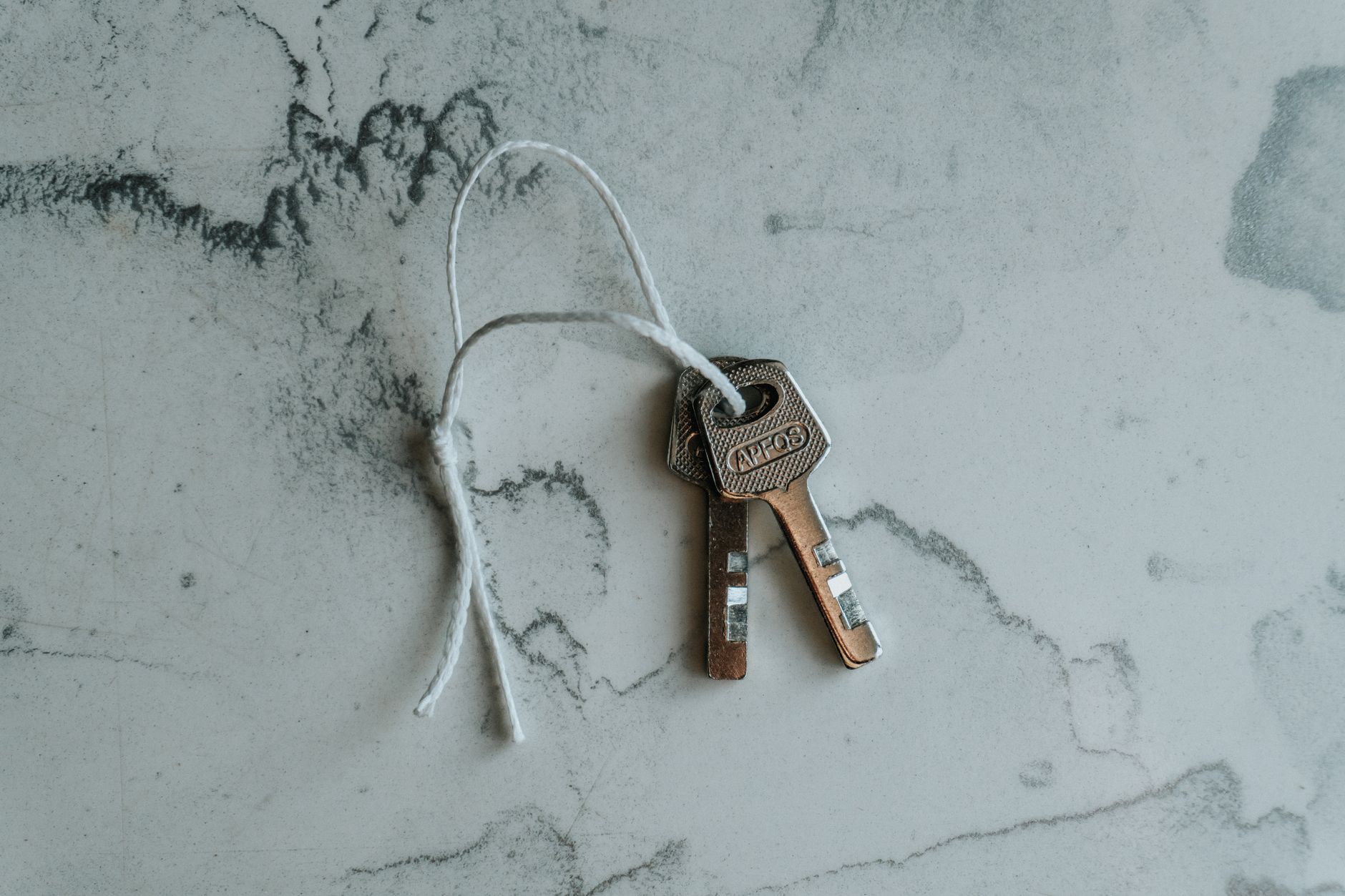
Hardware security keys are small USB or NFC devices that you tap or insert to approve a login. They are the strongest form of two-factor authentication. Brands like YubiKey, Google Titan, and Feitian are widely supported. The key proves you physically have the device. A remote attacker cannot trick you into sharing a code because there is no code to share. They would need the physical key in hand.
Use a hardware key for your primary email, password manager, financial accounts, and any service that supports the FIDO2 or U2F standard. Many large platforms, including Google, Microsoft, Apple, Facebook, and X, support hardware keys. Go to the security or 2FA settings and choose ‘Security key’ or ‘Passkey.’ You will be asked to insert the key and tap it. Some services allow you to register two keys.
Buy two keys. Keep one with you and one stored safely at home or with a trusted person. If you lose one, use the backup to access your accounts and remove the lost key. Do not store a hardware key in a visible place at your desk. It is as valuable as a house key.
Hardware keys are not free, but they are inexpensive compared with the damage from an account takeover. A basic key costs about $25 to $50. If you manage business accounts or hold significant crypto assets, this is a necessary control. The FBI’s Internet Crime Complaint Center notes that account takeover is a common gateway to financial fraud.
- Test your recovery options and remove old phone numbers and sessions.
Recovery is where many people get locked out. After setting up 2FA, add a recovery email and a recovery phone number that you control. The recovery email should also have 2FA enabled. If your primary email is compromised, the recovery email becomes your way back. Do not use the same phone number for recovery and login if you can avoid it.
Review all active sessions in your important accounts. In Google, go to Security > Your devices. In Facebook, go to Settings > Security and login > Where you’re logged in. Remove any device you do not recognize. If a scammer already has an active session from before you enabled 2FA, they may stay logged in. Removing sessions forces them to log in again, and the new 2FA will block them.
Check for old phone numbers. A phone number you gave up years ago could still be listed as a recovery number. Someone who later gets that number could receive your 2FA codes or password reset links. Delete any numbers you no longer own. Add a current number only if the service requires one. If you see suspicious activity, follow how to report an AI scam step by step.
Finally, run a test for each critical account once a month. Sign out, attempt a login, and confirm the 2FA challenge appears. This takes a few minutes and catches configuration errors before a scammer exploits them. The FBI recommends reporting attempted account takeovers to the Internet Crime Complaint Center. CISA also publishes updated guidance at its official website.
Red Flags & Warnings
- 🚨 Never share a one-time code with anyone, even if the caller says they are from your bank or the fraud department. Real banks will not ask for your 2FA code.
- 🚨 Do not approve an unexpected push notification from your authenticator app. Always check the location and time shown in the prompt.
- 🚨 Do not store backup codes in your email, cloud storage, or notes app. Write them on paper and keep them offline.
- 🚨 SMS two-factor authentication is better than none, but it can be defeated by SIM swapping. Switch to an authenticator app or hardware key for email and financial accounts.
- 🚨 If you lose your phone or hardware key, do not call a random support number from a web search. Go directly to the official website or app of the service to start account recovery.
- 🚨 Watch out for phishing pages that ask for both your password and your 2FA code. Scammers can proxy both in real time. Always check the URL before entering a code.
Frequently Asked Questions
What is two-factor authentication?
Two-factor authentication, or 2FA, requires a second proof of identity in addition to your password. That proof is usually a code from an app, a hardware key, or a text message. It blocks most account takeover attempts even if a scammer steals your password.
Is SMS two-factor authentication safe?
SMS is better than no 2FA, but it is less safe than an authenticator app or hardware key. Criminals can sometimes take over your phone number through SIM swapping and receive your text codes. Use SMS only when no stronger option is available, and switch to an app or key for email and financial accounts.
What should I do if I lose my phone with my authenticator app?
Use your backup codes to sign in and then set up 2FA on a new device. If you did not save backup codes, use the account’s recovery process, such as a recovery email or identity verification. After you regain access, remove the old device from your security settings and generate new backup codes.
Can scammers bypass two-factor authentication?
Yes, but 2FA makes it much harder. Common bypass methods include phishing pages that collect your code, phone number porting, and fake push prompts. That is why you should never share codes, use strong 2FA methods, and review suspicious prompts carefully.
Which accounts should I secure with 2FA first?
Start with your primary email account because it can reset passwords for other accounts. Then secure financial accounts, cloud storage, social media, and your password manager. Any account that could be used to impersonate you or spend your money should have 2FA.
Are authenticator apps free?
Yes, most authenticator apps are free, including Google Authenticator, Microsoft Authenticator, and Authy. Hardware security keys cost about $25 to $50 but offer the strongest protection. Free apps are a good start for most people.
What Should You Remember?
- Enable 2FA on email first: Your email unlocks password resets for every other account.
- Use an authenticator app: App-based codes are safer than SMS against SIM swapping.
- Secure financial accounts next: Add 2FA and transaction alerts to bank, brokerage, and crypto accounts.
- Store backup codes offline: Print them or write them on paper, never in your email or cloud.
- Use hardware keys for high-risk accounts: A physical key blocks remote attackers even with your password.
- Test recovery options monthly: Sign out and sign back in to confirm 2FA works before you need it.
- Never share codes: No legitimate bank or company will ask for your one-time password.
This article is for general educational information only and is not legal, financial, or professional security advice. Scam tactics evolve quickly, so verify current guidance with official sources like the FTC, FBI IC3, or CISA before acting. Some links may be affiliate links that support this site at no cost to you.